Configure an SFTP storage connection
Configuring an SFTP storage connection requires completing a series of steps to establish a secure, encrypted connection to the remote SFTP server. This process ensures the safe transfer and storage of data. You will need to provide key configuration details such as the server address, port number, authentication method, and the destination path. For the instructions on the configuration process, follow the steps described below.
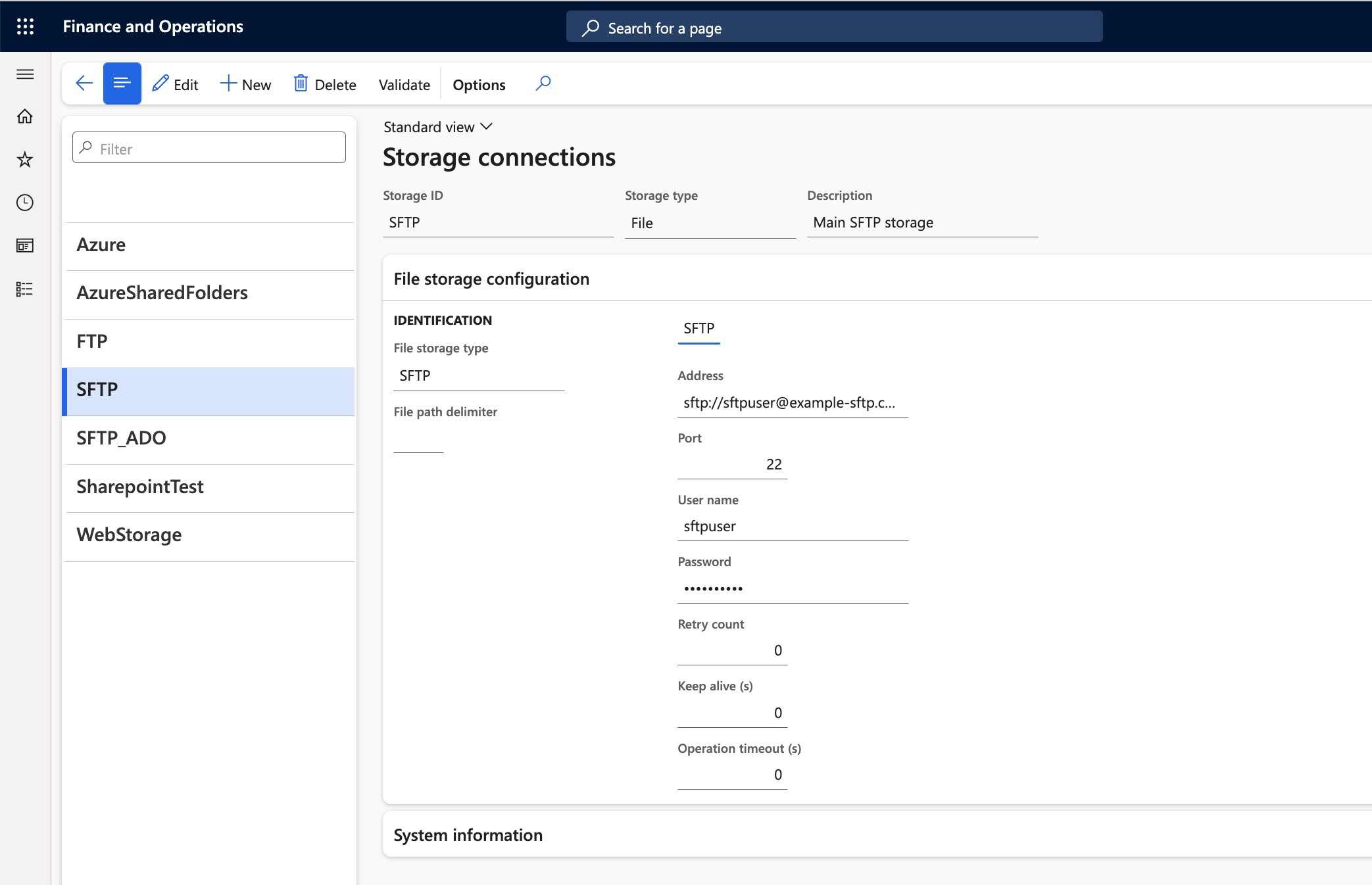
To configure an SFTP storage connection:
- In the Finance and Operations, expand the Modules and select Outbridge.
- From the displayed menu, select Data integration > Storage connections.
- Select New from the toolset panel at the top of the page.
- On the displayed page, select the SFTP type from the list of available storage connections.
- In the displayed window, specify the following details:
- Storage ID—a name or identification number of a new storage connection.
- Storage type—select File.
- Description— a summary or details for a new storage connection.
- File storage type—a type of storage connection for processing files. Here, select SFTP.
- User name—a name or ID of a user to authenticate with the SFTP server.
- Password—a password associated with the username for authentication.
- Address—the hostname or IP address of the SFTP server to connect to a new storage connection.
- Port—the network port used for the SFTP connection.
- Operation timeout (s)—the time an individual SFTP operation may take before it is treated as failed.
- Keep alive (s)—the interval at which keep-alive messages are sent on an open connection. Use this where an intermediate firewall closes idle connections.
- Retry count—the number of additional attempts made after a failed operation.
- File path delimiter—the path separator used by the remote server, where it differs from the default.
- Select Test connection to verify that the entered details for the new storage connection are valid. If everything is correct, a notification will confirm the successful validation.
- Select Save to finalize the configuration of your new storage connection.
Retry behavior #
Retry count applies to each SFTP operation—connecting, uploading, downloading, renaming, and deleting—as one initial attempt plus that many retries, with a capped delay between attempts.
Retries are deliberately limited to failures that can succeed on a second attempt:
- Retried—transient network and SSH failures, such as a dropped connection or a timeout.
- Not retried—authentication failures, permission errors, missing or invalid paths, configuration errors, and local file problems. These fail immediately, because repeating them cannot help and would only delay the error reaching the log.
Retry counts apply per operation, not to the integration as a whole. A port transferring many files can therefore exceed the time a single operation's retries would suggest.
Deleting a file that is already absent is treated as success. A rename interrupted after the server acted is reconciled by checking the source and destination, so an acknowledgement lost in transit does not fail an operation that actually completed.
Name resolution #
SFTP connections use ordinary operating system name resolution. If a hostname does not resolve, correct it in the environment's own network configuration; supply an IP address in Address only as a temporary measure.
Diagnosing a failure #
Connection failures are logged with the operation context and the underlying exception. In run history, the log entry's Message summarizes the root cause and its Details carry the full exception chain, which distinguishes a DNS or TCP failure from an SSH identity or authentication failure. A failure to query whether a file exists is reported as a failure, not as the file being absent, so an unreachable server is never mistaken for an empty folder.