Work with the diagram
A mapping diagram consists of two trees, the lines and function blocks between them, and the loops that decide how many records are written. This page describes each part; for a first mapping from start to finish, see Build a mapping.
Everything on this page requires edit mode: select Edit on the Format mapping form first.
Trees #
Tree menu #
Each tree has a menu, opened with the … button at the right end of its title strip.
- Load a sample file...—builds the tree from a JSON or XML file you upload. Use it for the file side of a mapping.
- Fill from DMF—builds the tree from the entity on the header, with the fields the port's data project maps. It is offered on the entity side, and only when the header names an entity.
- Reset tree—empties the tree. The lines and blocks drawn on it are removed as well.
- Clear all mappings—removes every line, block, and loop, and leaves both trees as they are. Use it to start the drawing again on the same trees.
Each of these asks for confirmation before it removes anything.
Filling a tree again, from the entity or from another sample, redraws it and removes the map drawn on that tree.
Reading a tree #
- Select the small triangle in front of an element to fold or unfold it.
- The badge at the right of a row shows the type:
abctext,123number,{ }object or XML element,[ ]array or repeating element. - The dot at the edge of a row that faces the middle of the diagram is where lines start (source tree) or end (target tree).
- Rows of the target tree have a … button for constants and expressions. See Constants and expressions.
- In an entity tree the record element, for example
CUSTCUSTOMERGROUPENTITY, repeats: it is written once per record. A composite entity shows its members nested, for example the sales order lines inside the sales order header.
Moving and resizing #
Drag a tree or a block by the handle (⠿) at the left of its title strip to move it, and drag the edge of a tree to make it wider or narrower. The arrangement is saved with the mapping; it does not change the result.
Repeating elements in XML samples #
In an XML sample, the mapper recognizes that an element repeats only when the sample contains it more than once. When your sample has a single order but real files have many, mark the element as repeating:
- Select the type badge of the element, for example
{ }next toorders. - Select Repeats. The badge changes to
[ ], and loops are added for the lines already drawn from inside the element.
To remove the mark, select the badge again and select Does not repeat.
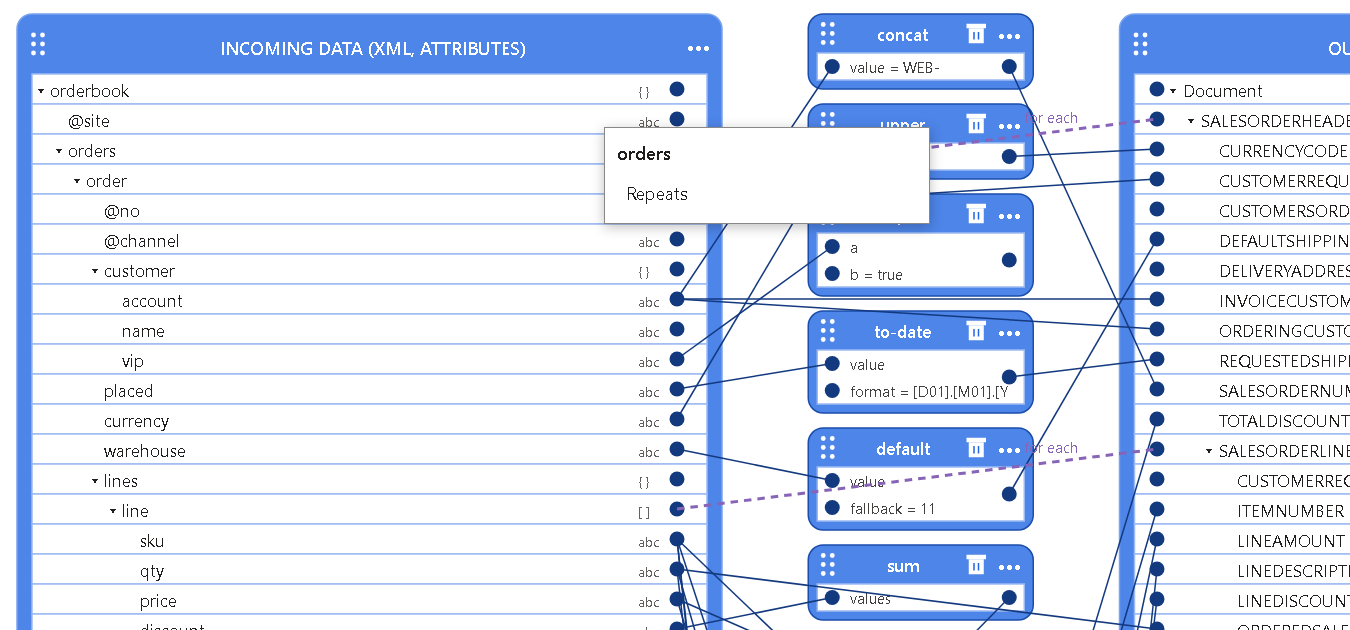
JSON samples do not need this, because a JSON array is always recognized as repeating. The mark is offered for elements below the root of an XML tree, not for attributes or text values.
Lines #
Drawing lines #
- Drag from a source dot to a target dot, from a source dot to an input of a block, or from the output of a block to a target dot or to an input of another block.
- A target field takes one line.
- A target field that has a constant or an expression does not take a line. Clear its value first.
- When the types at both ends look incompatible, for example text into a number field, the mapper warns but draws the line.
- To connect a line to a different field, drag its end to that field.
Selecting #
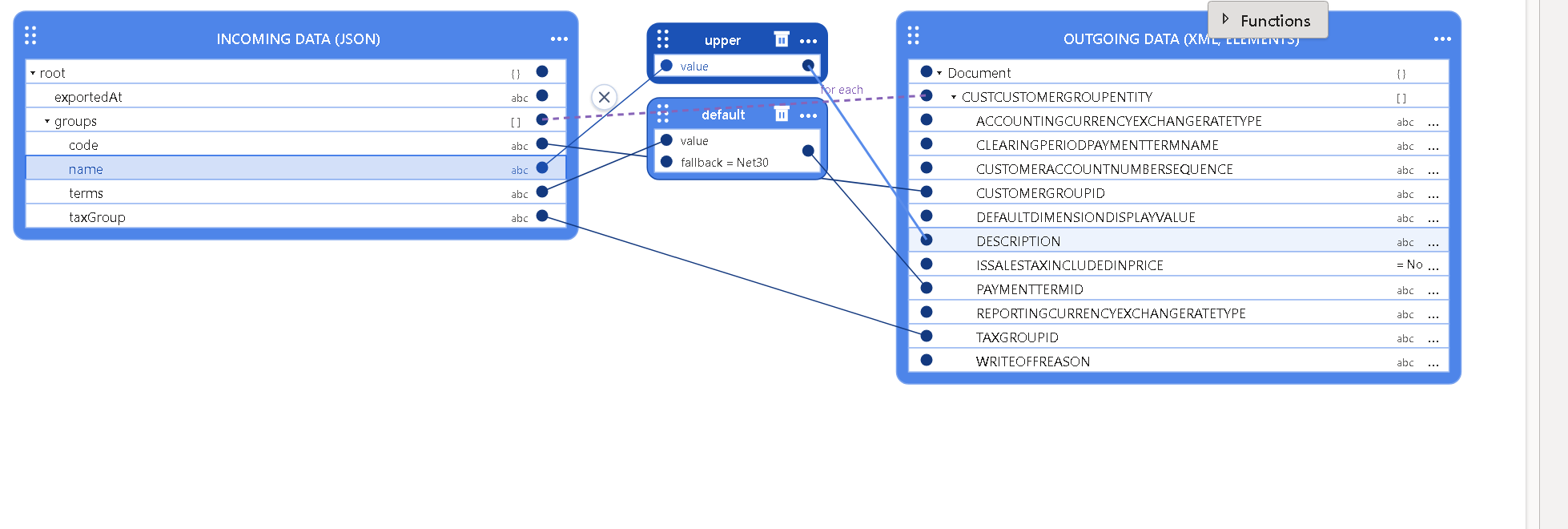
Select a line, a block, a loop label, or a field row (not its dot). The selection is highlighted together with the chain it belongs to; for a source field, that is every line and block its value passes through on the way to the target.
Deleting #
- Press Delete, or select the round × button next to the selection.
- Select the bin icon in the title strip of a block to delete the block.
- Clear all mappings in the tree menu deletes everything that is drawn.
Function blocks #
- Open a group in the Functions palette and select a function. The block is placed in the middle column of the diagram.
- Connect lines to its inputs and from its output.
Blocks can be chained: the output of one block can feed an input of another. A chain that would feed a block back into itself is refused. A block that is missing inputs it needs is left out of the script, and the mapper reports it when you save.
Select … in the title strip of a block to open its properties panel:
- Help—what the function does.
- One row per input—an input fed by a line shows the source of the line; any other input accepts a constant. Inputs that expect a number accept only digits, an optional minus sign, and an optional decimal point.
The functions and their inputs are listed in Function reference.
Constants and expressions #
Not every target value comes from the source. Select … at the right end of a target row to open its panel:
- Type—the data type of the target field. Read-only.
- Constant—a fixed value written to the field for every record.
- Expression—an XPath 3.1 expression evaluated for every record. Paths are relative to the current record of the loop: write
?namein a JSON source andnamein an XML source.
When both are filled, the constant is used. For a field that receives a line, the panel shows where the line comes from instead.
| Expression | Result |
|---|---|
current-date() | Today's date. |
upper-case(?name) | The JSON field name in capitals, the same as the upper function. |
concat(code, '-', name) | In an XML source: the elements code and name joined with a dash. |
Loops #
A loop means that one target record is written for each element of a repeating source element. The mapper creates the loop by itself when you draw a line from a field inside a repeating source element to a field inside a repeating target element. There is one loop per repeating target element; lines drawn later use the same loop.
The loop is shown as a dashed line from the repeating source element to the target element, labeled for each, or grouped by followed by the grouping path.
Loop properties #
Select the label of the loop to open its panel:
- For each—the repeating source element the records come from. You can change it, for example to loop over a deeper array.
- Produces—the target element written once per record. Read-only.
- Group by—paths inside the repeating element, separated by
;. One target record is written per distinct combination of these values, instead of one per source element. - Filter—a condition over one source record. Records for which it is false are skipped, for example
?status = 'active'in a JSON source orstatus = 'active'in an XML source. - Sort by—paths inside the repeating element, separated by
;. The records are written in this order.
Grouping #
Grouping turns several source records into one target record. In the mapping shown on The Format mapping form, the orders of a file are grouped by customer/account: all orders of one customer become one sales order, and their lines become the lines of that order.
In a grouped loop, a field that is not aggregated takes its value from the first record of the group. The Collection functions (sum, count, min, max, distinct, first) and join work over all records of the group.
Composite entities #
For a composite entity, for example Sales orders composite V4, the target tree shows the members nested, and each repeating member gets its own loop: one for the headers, and one for the lines inside each header. The fields that link a child record to its parent are filled automatically.
Values outside the loop #
A source field outside the repeating element, for example exportedAt in a file that holds a groups array, is read once from the document and written to every record.
When a line comes from a repeating element that no loop runs over, only its first value is written, and the mapper warns when you save. Draw the loop, or pass the value through join, sum, or first to state what should happen with several values.
The generated script #
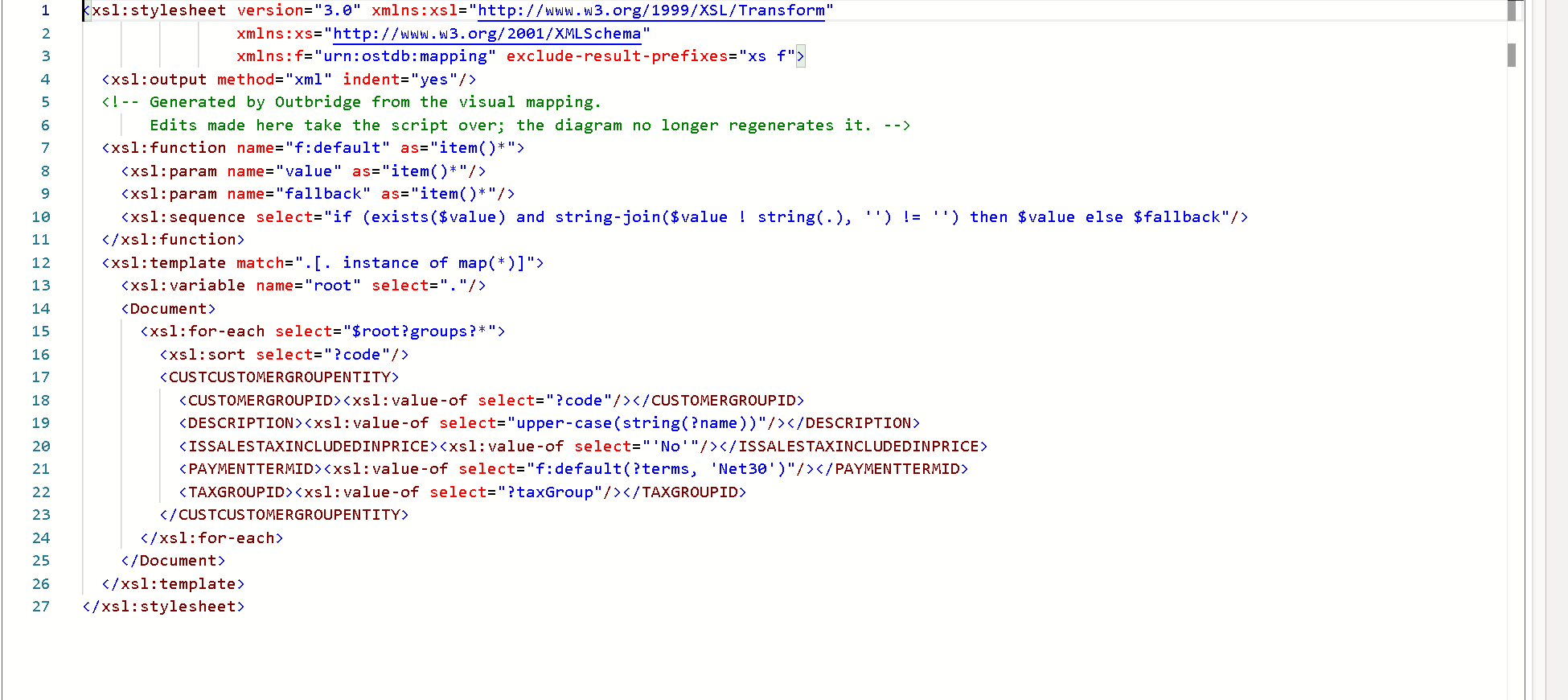
The XSLT script is generated from the diagram whenever you save a changed mapping—with Save, or by leaving the Mapping tab in edit mode. Messages of the generator, for example about blocks with missing inputs, appear in the message bar.
The XSLT tab shows the generated script. Everyday work does not need it; it helps when you discuss a mapping with a developer.
Editing the script by hand #
The script can be edited on the XSLT tab, for the cases the diagram cannot express. When you save an edited script, you are asked to confirm:
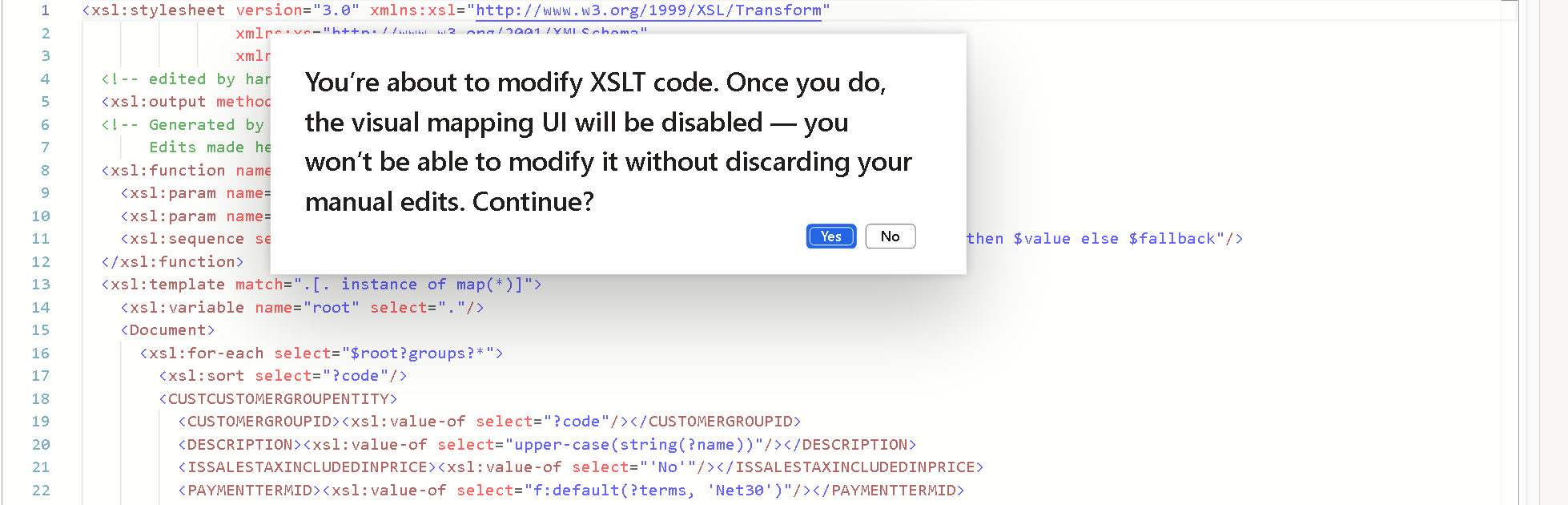
- Yes—the edited script is kept, and the visual mapping of this mapping is switched off. The Mapping tab then shows The editor is not available: the script is maintained by hand. Changes to the diagram no longer reach the script.
- No—your edit is discarded, and the generated script stays.
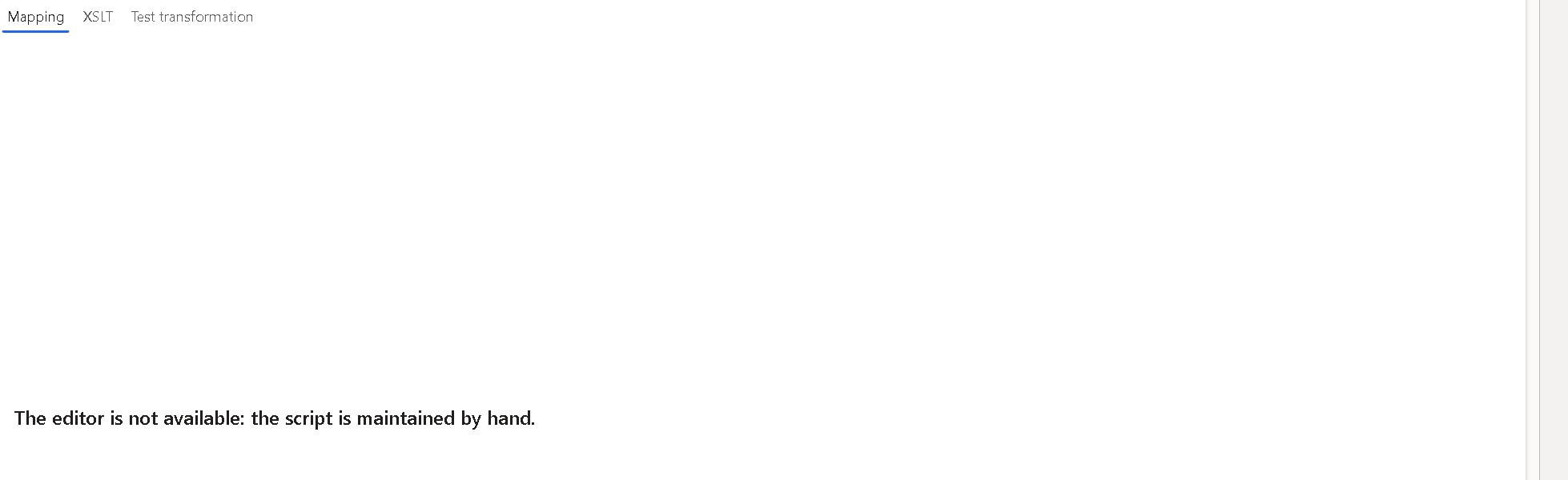
To return to the visual mapping, delete the whole text of the script on the XSLT tab and save. The Mapping tab becomes available again with the diagram as it was. The script stays empty until the diagram is changed and saved again, so make a change on the diagram, for example move a block, and save before the port runs.