Import and exporting data entities
This article provides a step-by-step guide to managing data entities transfer processes in the Outbridge solution. It explains how to import data settings into the solution, export data ports and data groups, and handle the export of composite entities.
Importing the data
To import the data to the Outbridge solution:
- In the Finance and Operations, expand the Modules and select Outbridge.
- From the displayed menu, select Setup > Data management > Import configuration.
- In the displayed dialog, select Browse, then attach the file you want to import from your local storage.
The notification about the successfully imported file is displayed in the Action center.
Note: The import file should be in JSON format.
____________
Exporting Data ports and Port groups
To export data from the port or a port group:
- In the Finance and Operations, expand the Modules and select Outbridge.
- From the displayed menu, select Data management.
- Depending on your need, select either Export ports or Export port groups.
- In the Export dialog, select Filter.
- In the displayed dialog, specify the following settings:
- Table—a data entity. For instance, a data port.
- Derived table—selected entity for the export processing.
- Field—a field of an entity for export processing.
- Criteria—a specific item that corresponds to the selected field.
- If you need to extend the port-export settings, select Add.
- Select OK.
- The Export dialog displays the updated settings.
- Select OK again.
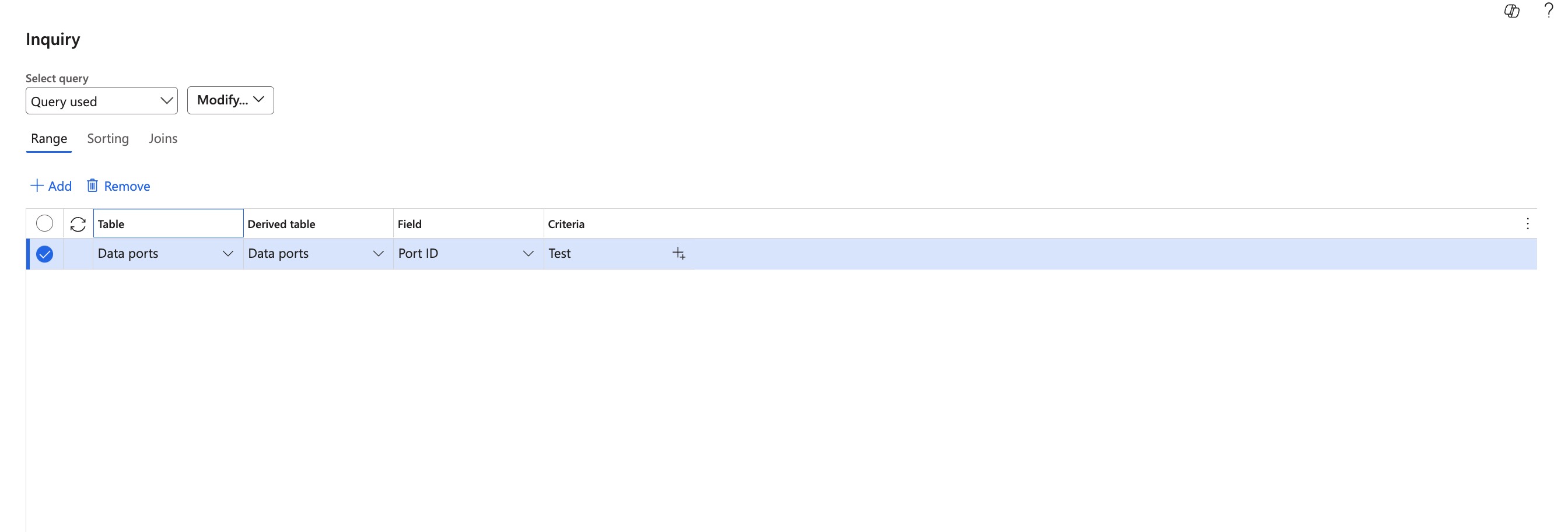
The file with the selected data ports data is being exported.
- On your PC, go to the folder with downloaded files and check the exported data.
________
Exporting Composite entities
To export a composite entity:
- In the Finance and Operations, expand the Modules and select Outbridge.
- From the displayed menu, select Data management.
- Depending on your need, select Export composite entities.
- In the Composite entity dialog, select Filter.
- In the displayed dialog, specify the following settings:
- Table—a data entity. For instance, a composite entity.
- Derived table—selected entity for the export processing.
- Field—a field of an entity for export processing.
- Criteria—a specific item that corresponds to the selected field.
- Use the Add button to create more export settings.
- Select OK.
- The Composite entity dialog displays the updated settings.
- Select OK again.
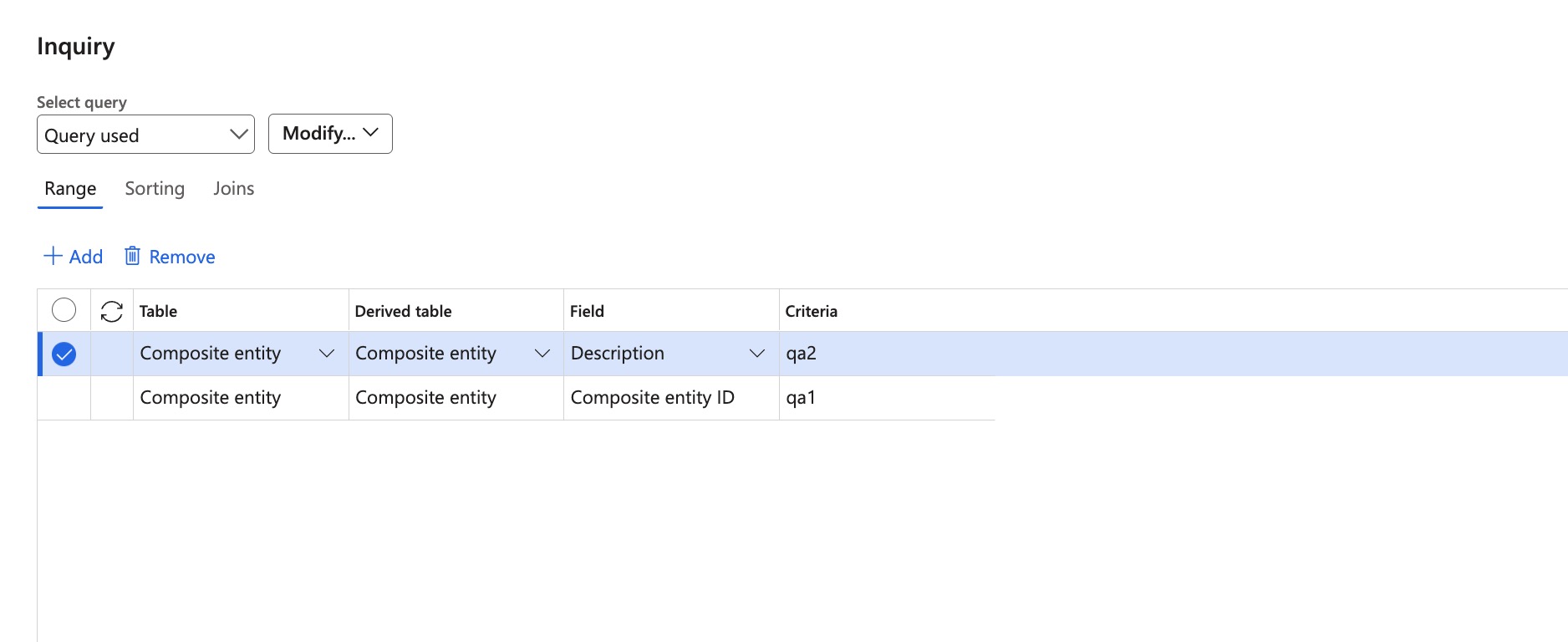
The file with the selected data ports data is being exported.
- Check the exported file in the Downloads folder on your PC.