Configure a Data port
The process of configuring a data port includes providing details for the port, selecting a data import or export option, and specifying the correct locations for data processing.
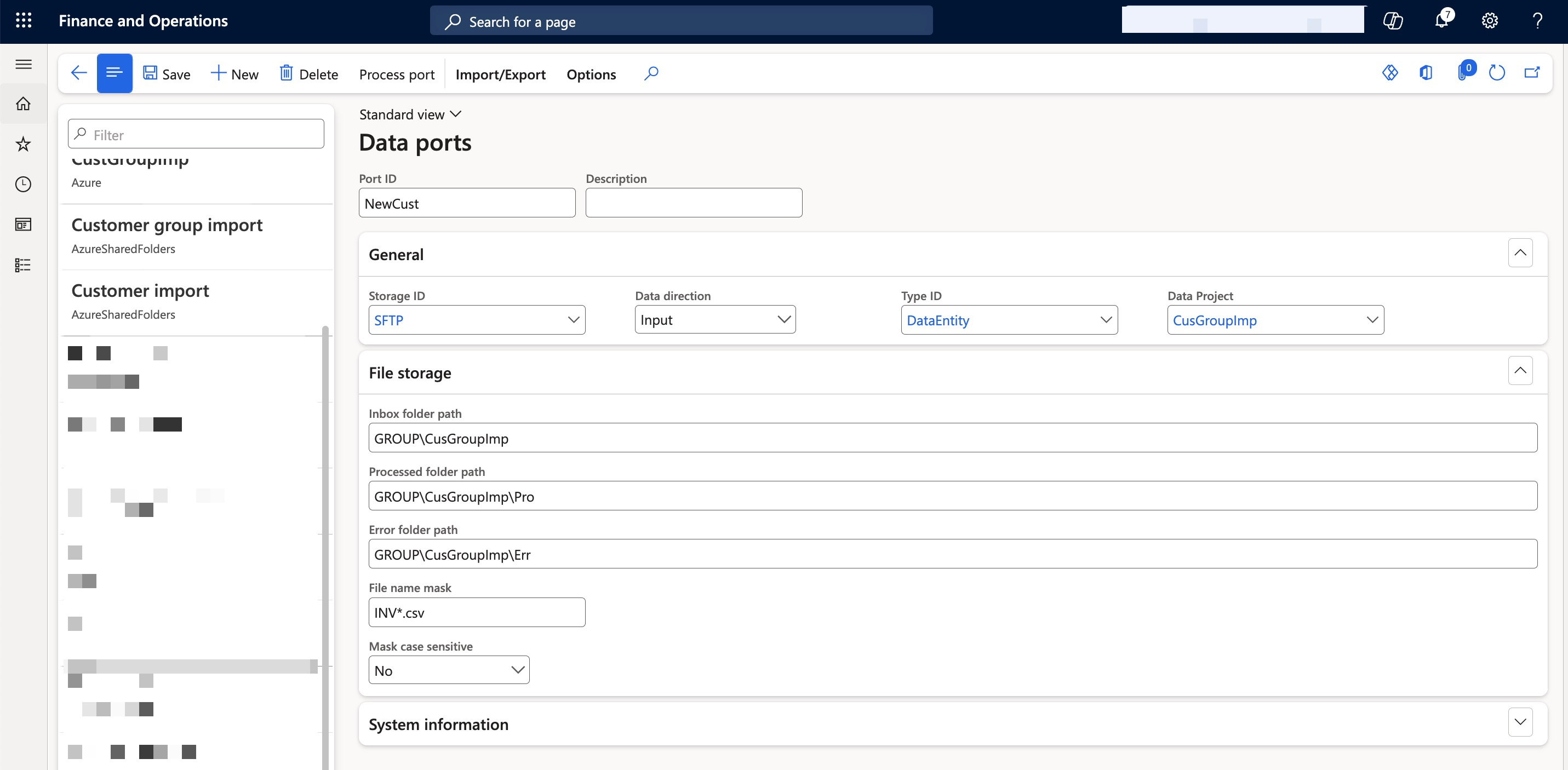
To configure a Data port for data import:
- In the Finance and Operations, expand the Modules and select Outbridge.
- From the displayed menu, expand Data integration > Data ports and select Data ports.
- On the displayed page, select New from the toolset panel at the top of the page.
- In the Port ID, provide the name or identification number of a new data port.
- In the Description, provide details about the new data port.
- From the Storage ID, choose the data storage to load the data from.
- From the Data direction, choose either Input to upload your data or Output to extract the data.
- From the Data processor, choose the appropriate data processor to process your data. If you have chosen a DataEntity type, you must specify the corresponding Data project that contains the mapping for loading the files.
- If you have chosen Input in the Data direction, proceed with the following steps:
- In the Inbox folder path, specify the directory where you want to place incoming data files for processing.
- In the Processed folder path, specify the directory where the successfully imported and processed files should appear.
- In the Error folder path, specify the directory where files that failed during processing should be located.
- Choosing Output in the Data direction requires you to specify the Outbox folder path—the directory where you want to place the data files after they have been processed and exported.
- (Optional) In the File name mask, enter the mask for the port's direction:
- For an Input port, the mask selects which files the port takes from the inbox folder.
*stands for any characters and?for one character, and the mask must match the whole file name:INV*.csvtakesINV001.csvbut notINV001.csv.part. - For an Output port, the mask is the name of the exported file. Placeholders in braces are replaced when the file is written:
CHARGEBACKS_{datetime}.txtwritesCHARGEBACKS_20261007_131530.txt.
See File name masks for every placeholder and example.
- For an Input port, select Mask case sensitive if the mask must also match the case of the letters.
- Select Save.
The Data processor lookup only offers processors that match this port's Data direction and the storage type of its Storage ID. If the processor you expect is missing, check those two fields first. See Configure a Data processor.
An outbound port using a Data entity or API request processor can also be run with a filter chosen at run time. See Run a data port with parameters.