Visual mapper
The visual mapper lets you draw a format mapping instead of writing it. You connect the fields of a sample file to the fields of a data entity on a diagram, add functions where a value must change along the way, and the mapper generates the XSLT script that the port runs. Everyday mappings need no XSLT knowledge; only expressions and manual script editing assume basic XPath.
The diagram is stored with the format mapping it belongs to. The script is generated again every time a changed diagram is saved, and the port runs the script, not the picture.
What a mapping converts #
- Inbound (Data direction is Input)—an incoming JSON or XML document becomes records of a data entity, in the XML format the data project imports.
- Outbound (Data direction is Output)—the XML document the data project exports becomes the JSON or XML file the external system expects.
- File to file—a port without an entity maps one document format to another, for example JSON to JSON.
Terms #
- Source tree (the left tree)—the structure of the data that enters the transformation, built from a sample file or, on an outbound port, from the entity.
- Target tree (the right tree)—the structure of the data the transformation produces, built from the entity or from a sample of the file to produce.
- Line (a direct mapping)—the value of a source field is written to a target field as it is.
- Function block—a box on the diagram that changes values on the way, for example upper, concat, or default. For details, see Function reference.
- Constant—a fixed value written to a field instead of a value from the source.
- Expression—an XPath 3.1 expression typed for a target field, for the cases lines and functions do not cover.
- Loop—the rule that one target record is written for each element of a repeating source element, for example one customer group for each element of a
groupsarray. It is shown as a dashed line. - Repeating element—a JSON array, or an XML element that occurs more than once. It is shown with the badge
[ ].
Before you start #
- The data port exists, with its storage connection, direction, data processor, and Data project filled in. On an inbound or outbound port, the data project must contain the entity you are going to map. For details, see Configure a Data port.
- You have a sample of the data in JSON or XML, preferably a real file. The tree is built from the sample, so it should contain every field you want to map and, for lists, at least two records.
- You can maintain data ports. Changing a mapping needs the same rights as changing the port.
After Outbridge has been updated, refresh the browser once with Ctrl+F5. The browser caches the mapper's styles, and an old copy can make the diagram look wrong.
Open the mapper #
- In Finance and Operations, go to Modules > Outbridge > Data integration > Data ports > Data ports.
- Select the port.
- On the action pane, open the Data port tab.
- In the Mapping group, select Inbound Mapping for an inbound port, or Outbound Mapping for an outbound port. Only the button that matches the port's direction is available.
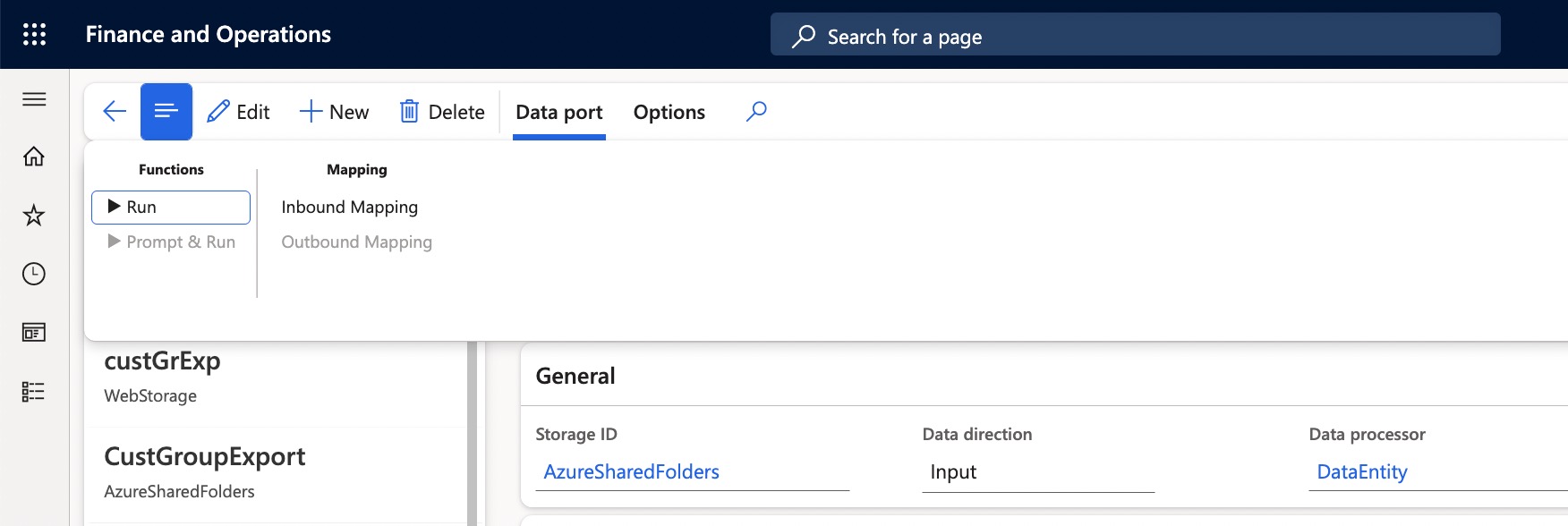
The Format mapping form opens. It lists the mappings of the port on the left, one per entity.
The Format mapping form #
The picture shows an inbound port that maps a JSON file to the Sales orders composite V4 entity.
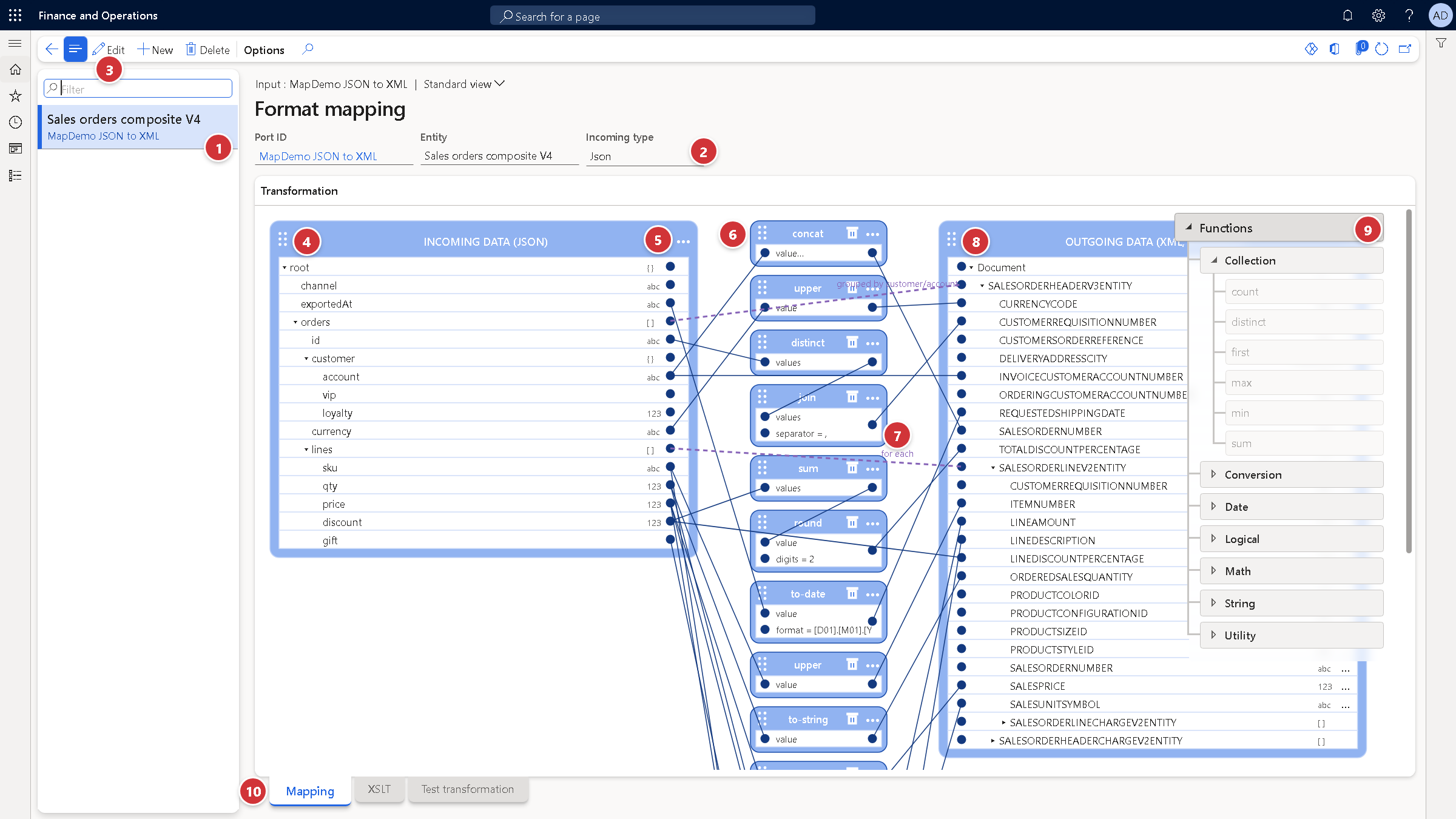
- Mapping list—one mapping per entity of the port. Select a line to work on that mapping.
- Header fields—Port ID, Entity, and Incoming type, described below.
- Edit—the form opens in view mode, where the diagram can only be looked at. Select Edit before you change anything.
- Source tree—the data that enters the transformation, titled for example INCOMING DATA (JSON).
- Tree menu—the … button in the title strip of a tree. Load a sample, fill from DMF, reset.
- Function block—a function placed on the diagram. Lines go into its inputs and out of its output.
- Loop—the dashed line between a repeating source element and the record it produces, labeled for each or grouped by … **.
- Target tree—the data the transformation produces, titled for example OUTGOING DATA (XML, ELEMENTS).
- Functions—the palette of functions, in groups. Select its caption to fold or unfold it.
- Tabs—Mapping (the diagram), XSLT (the generated script), and Test transformation (a test run on your own data).
Header fields #
- Port ID—the port the mapping belongs to.
- Entity—the data entity the mapping reads or writes. The lookup offers the entities of the port's data project. The field is required, except on event-based ports.
- Incoming type—the format of the data that enters the transformation. On an inbound port it is the format of the incoming file, JSONn or XML. On an outbound port it is XML, because a data project exports XML.
Outbound mappings #
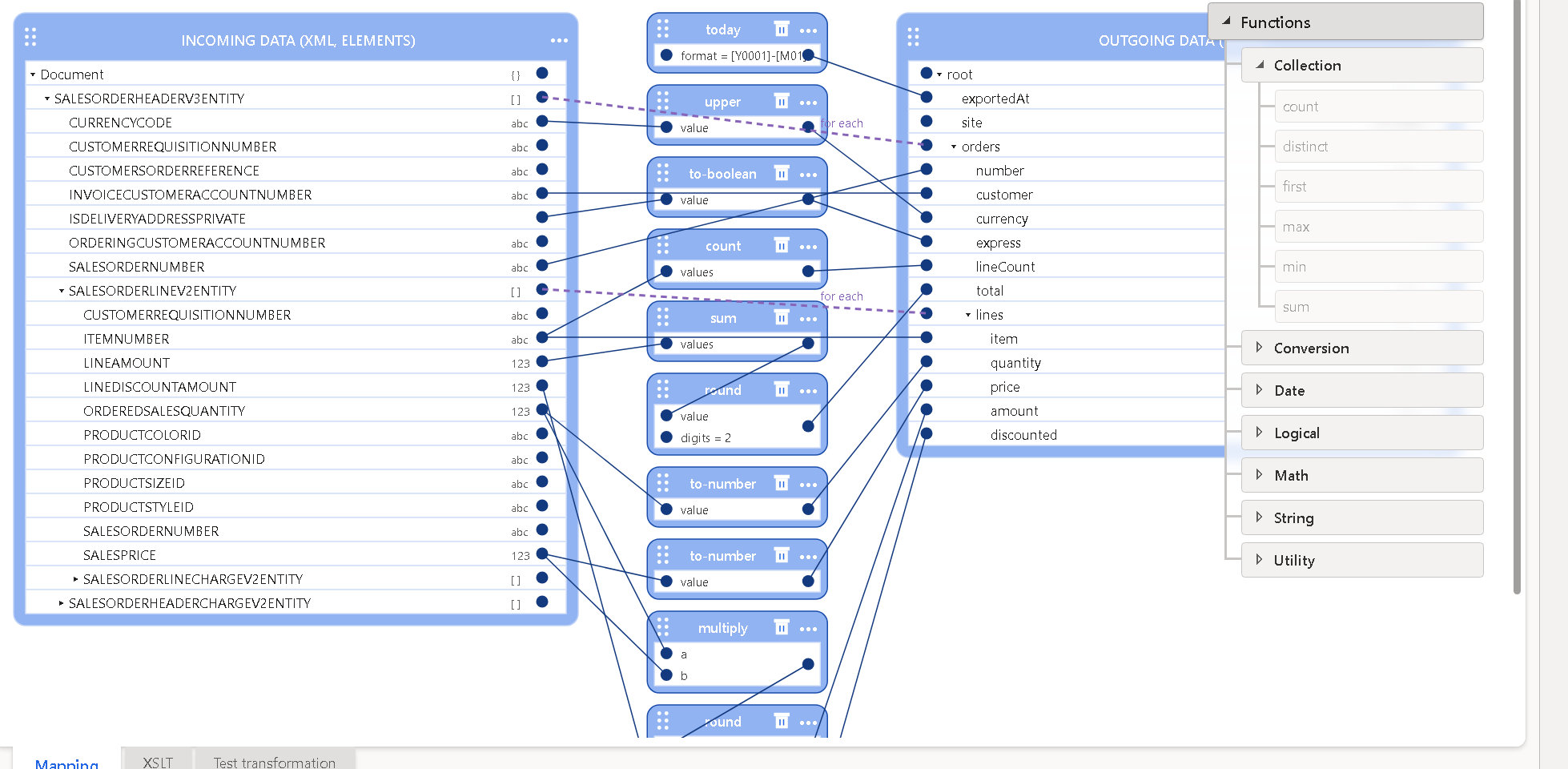
On an outbound port the two sides change places:
- The left tree is the XML document the data project exports for the entity. Fill it with Fill from DMF. Its element names are in capitals, as the data project writes them.
- The right tree is the file the external system expects. Fill it with Load a sample file..., using an example of that file in JSON or XML.
- Incoming type is Xml, because the transformation reads the exported XML.
Lines, functions, constants, loops, and grouping work the same way as inbound. The picture shows the Sales orders composite V4 entity exported as a JSON file.
On a port without an entity, fill both trees with Load a sample file... .