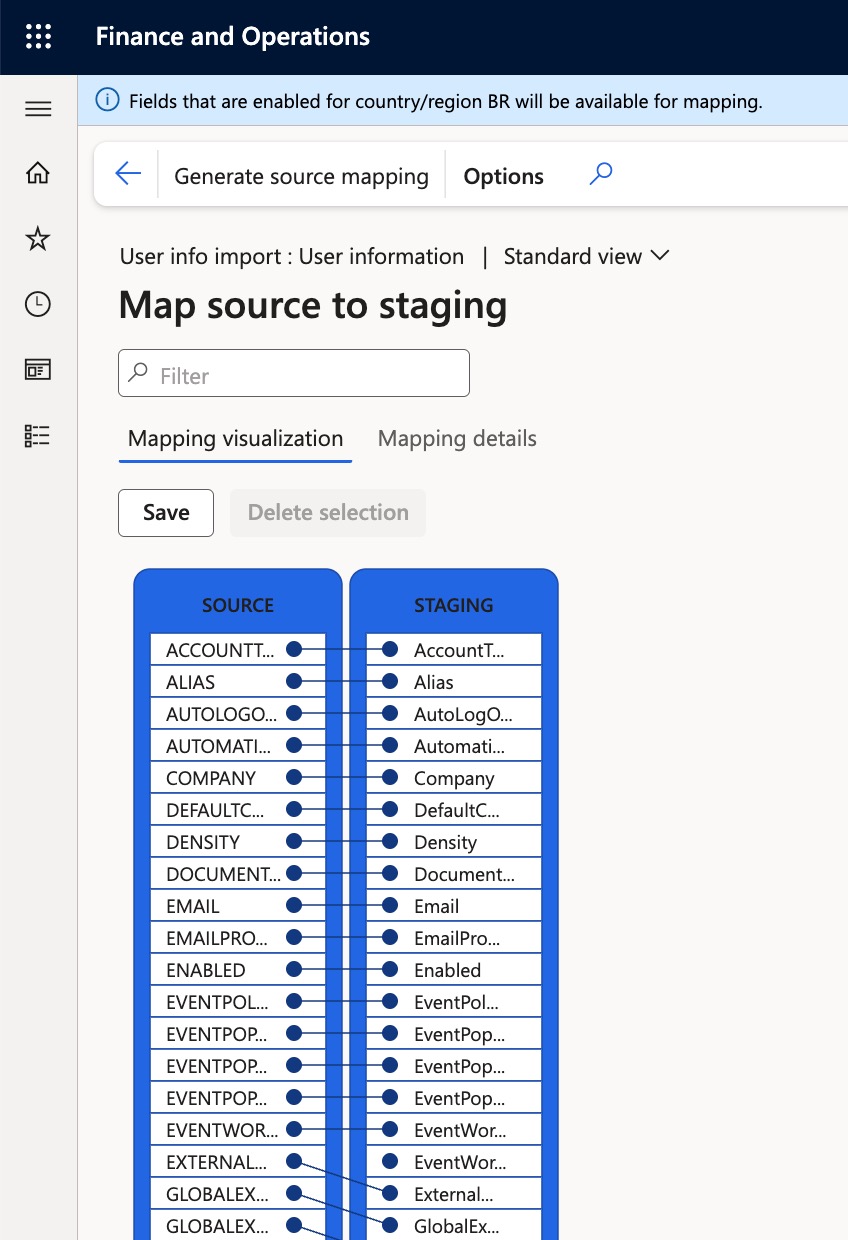
Create a data project by using the Data management Wizard
The project creation wizard is useful for creating and configuring data management, import, or export projects. Using this wizard, you can define the data fields to include in the Data Management Framework (DMF) project. Based on the selected fields, the Outbridge solution automatically searches for all data records that meet the specified criteria and adds them to the project.
Step 1: Choosing fields for data entities in a DMF project
When creating a DMF project for data import or export, choose an existing data entity first. Then, you can choose which fields to include in the data entity and create a project based on it. To choose fields for a data entity:
- In Finance and Operations, expand Modules, then select Sales and marketing.
- Select Sales orders > All sales orders.
- Among the displayed list of sales orders, choose the appropriate one.
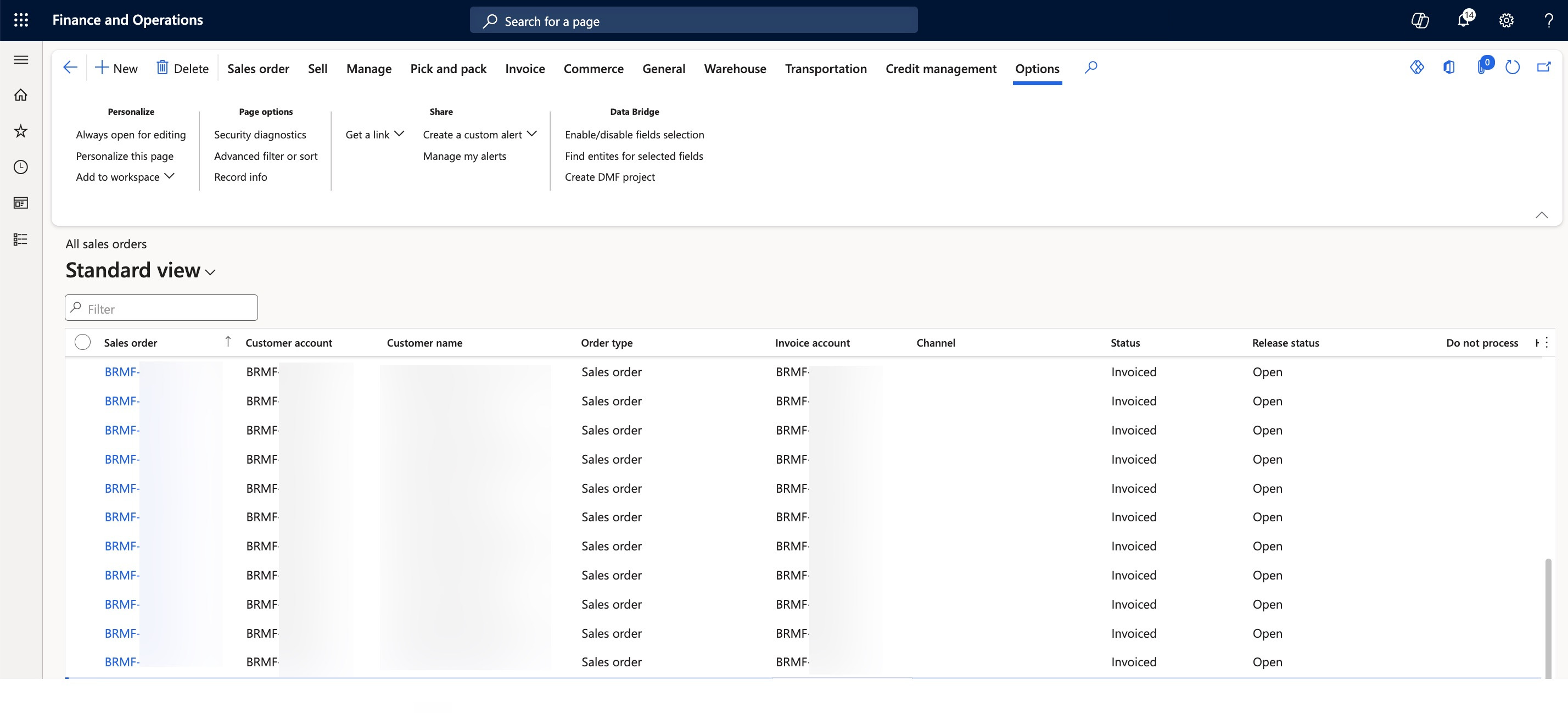
- Select the Options tab.
- Under the Outbridge section, select Enable/disable fields selection.
- In the displayed dialog, select the necessary checkboxes for the fields you want to include in the data project.
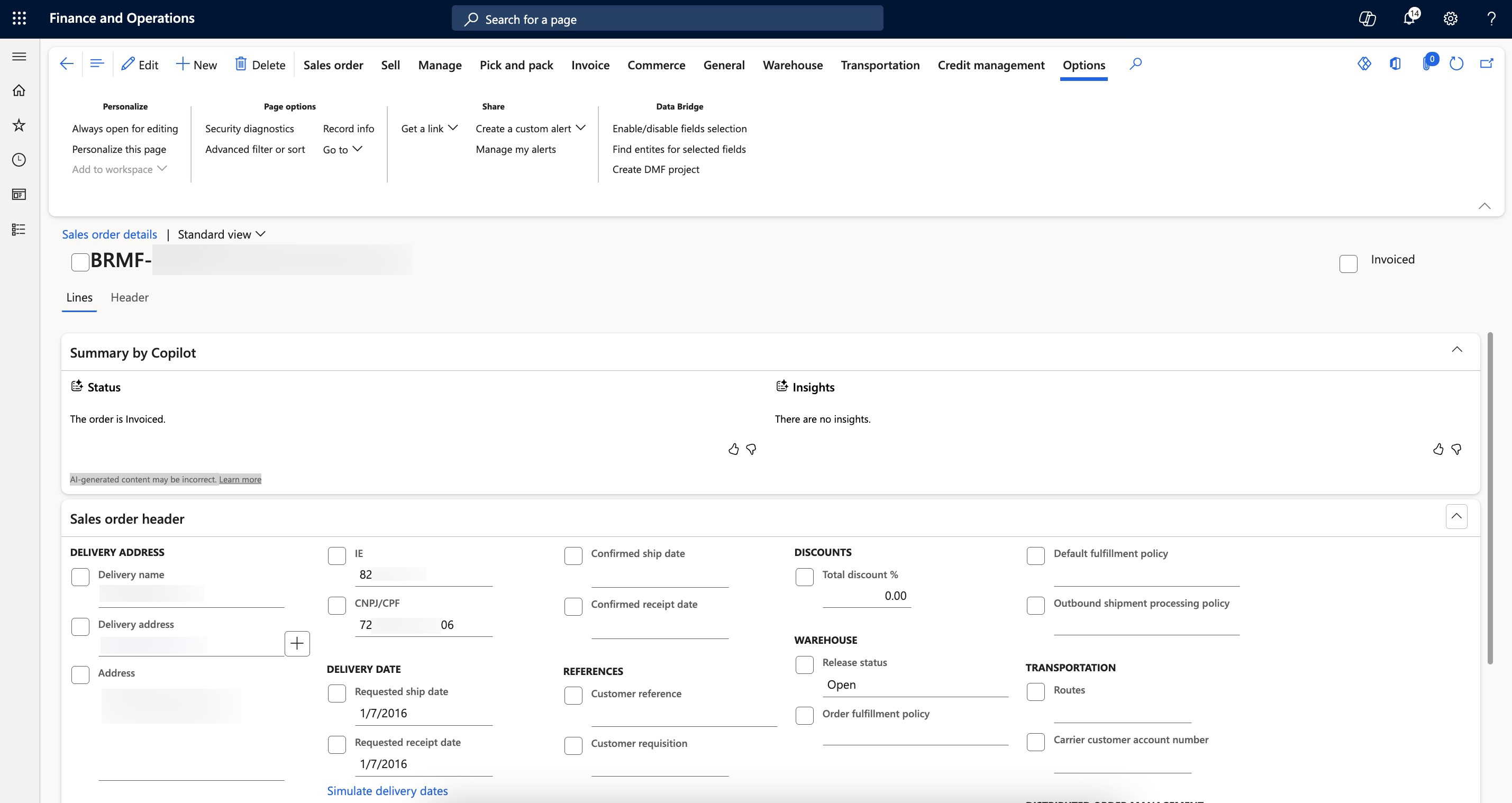
The next step is to generate a DMF project for the selected fields of the data entity.
Step 2: Generating a DMF project
- Under the Outbridge section, select Create DMF project.
- In the displayed dialog, select Next.
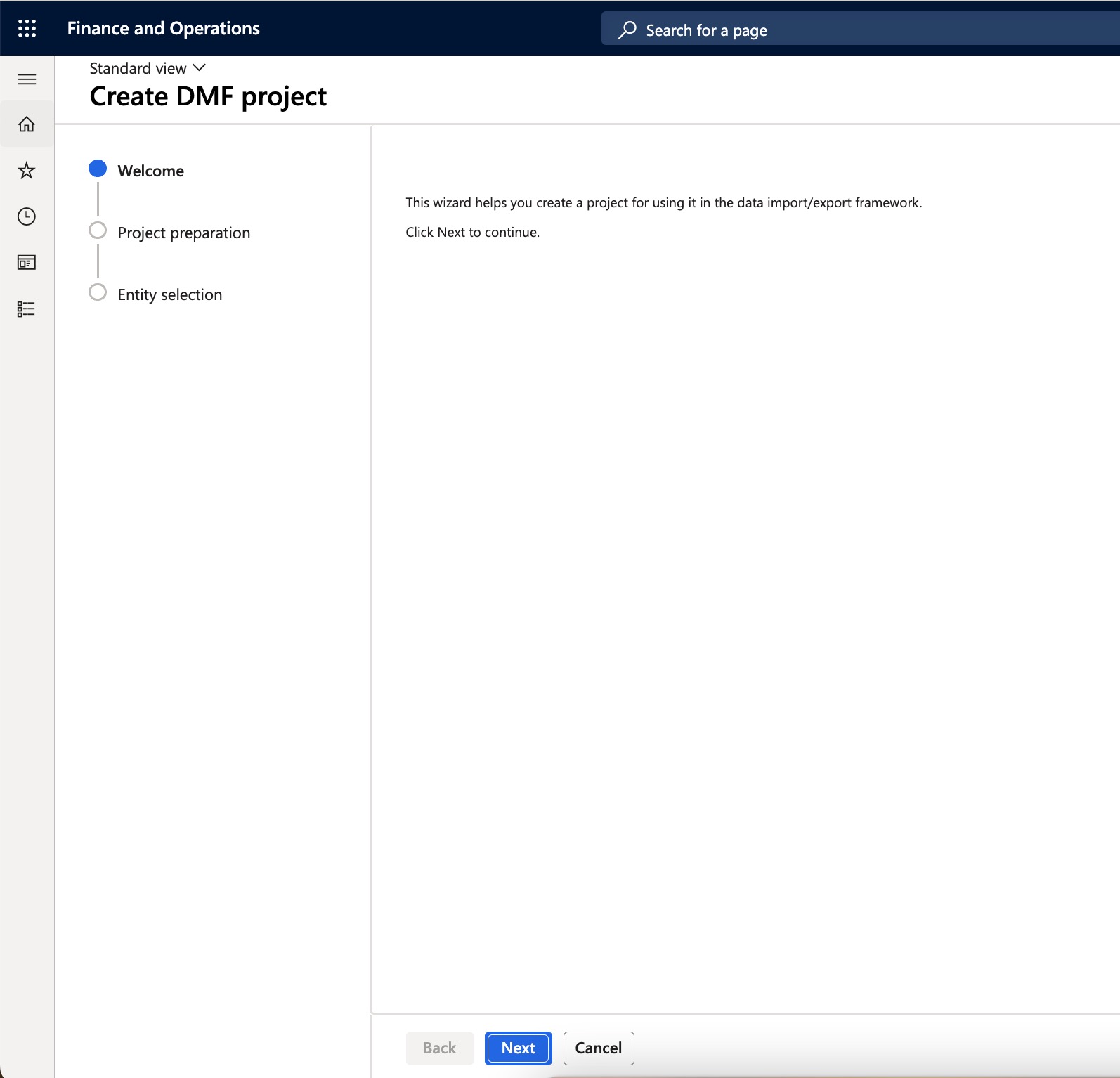
- In the displayed dialog, select Import or Export, depending on your project's purpose.
- Provide a name for the new project, then select Next.
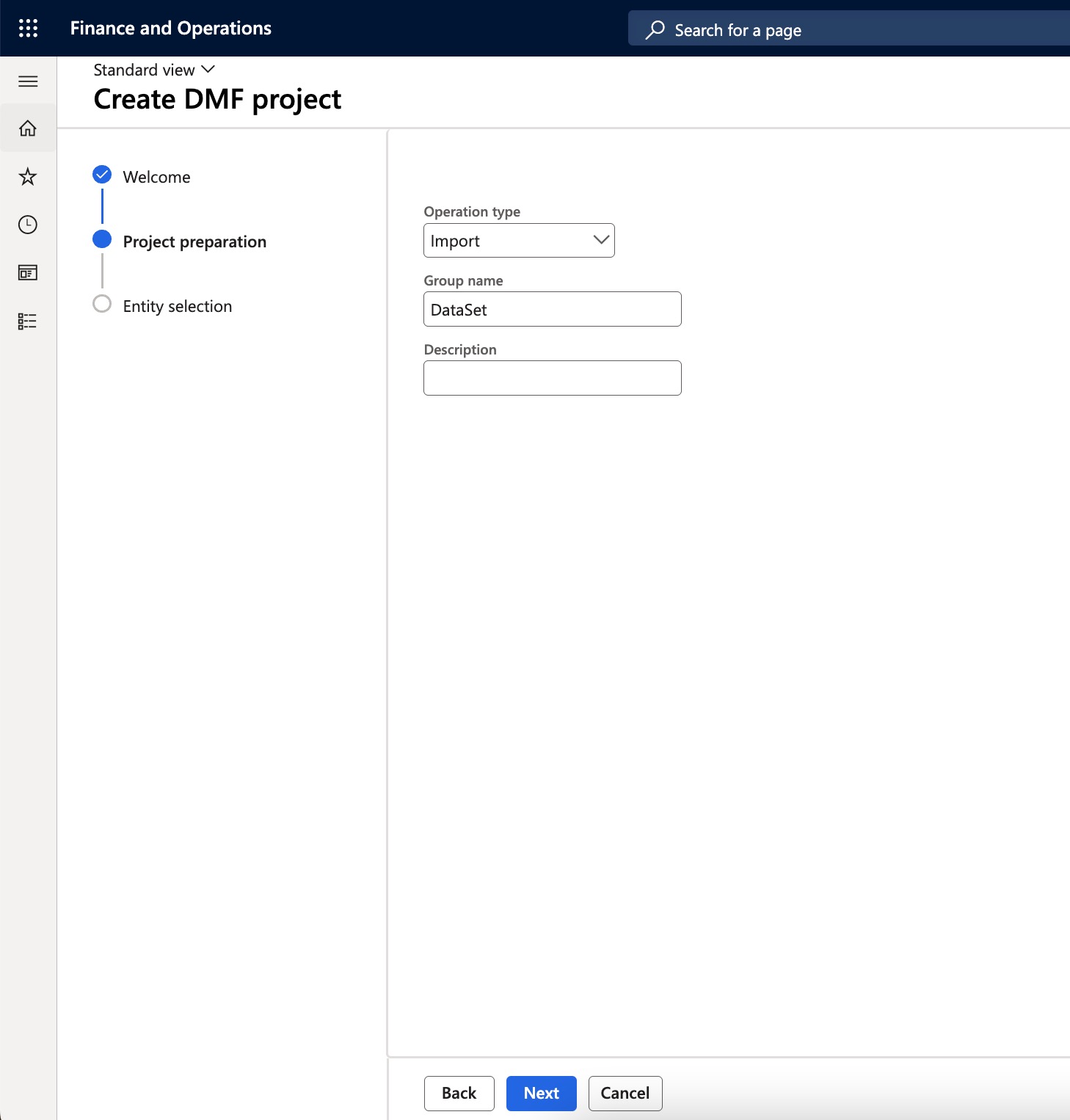
- In the final step, select the required data entities for your project, then select Finish.
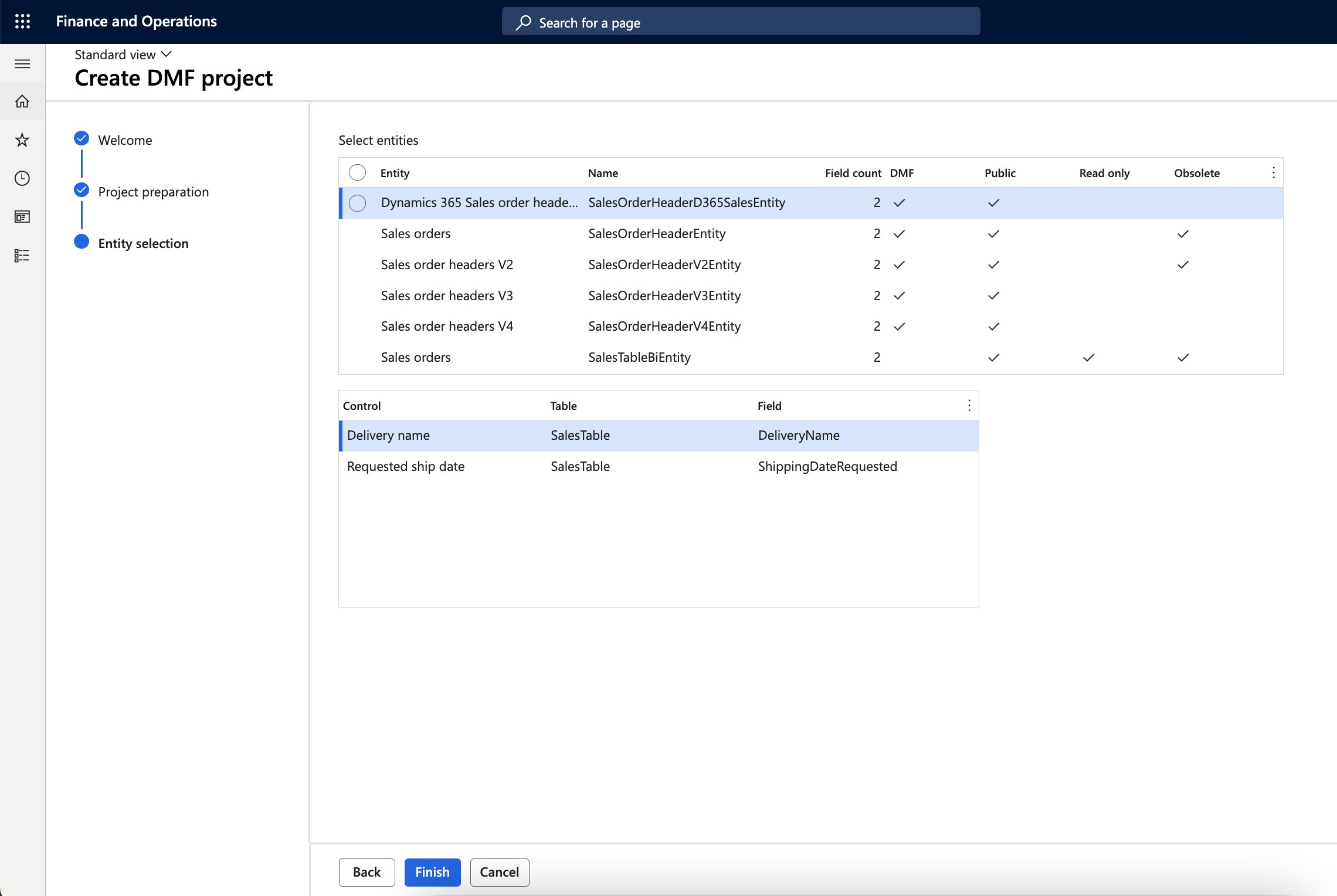
A notification is displayed confirming the successful completion of the data project.
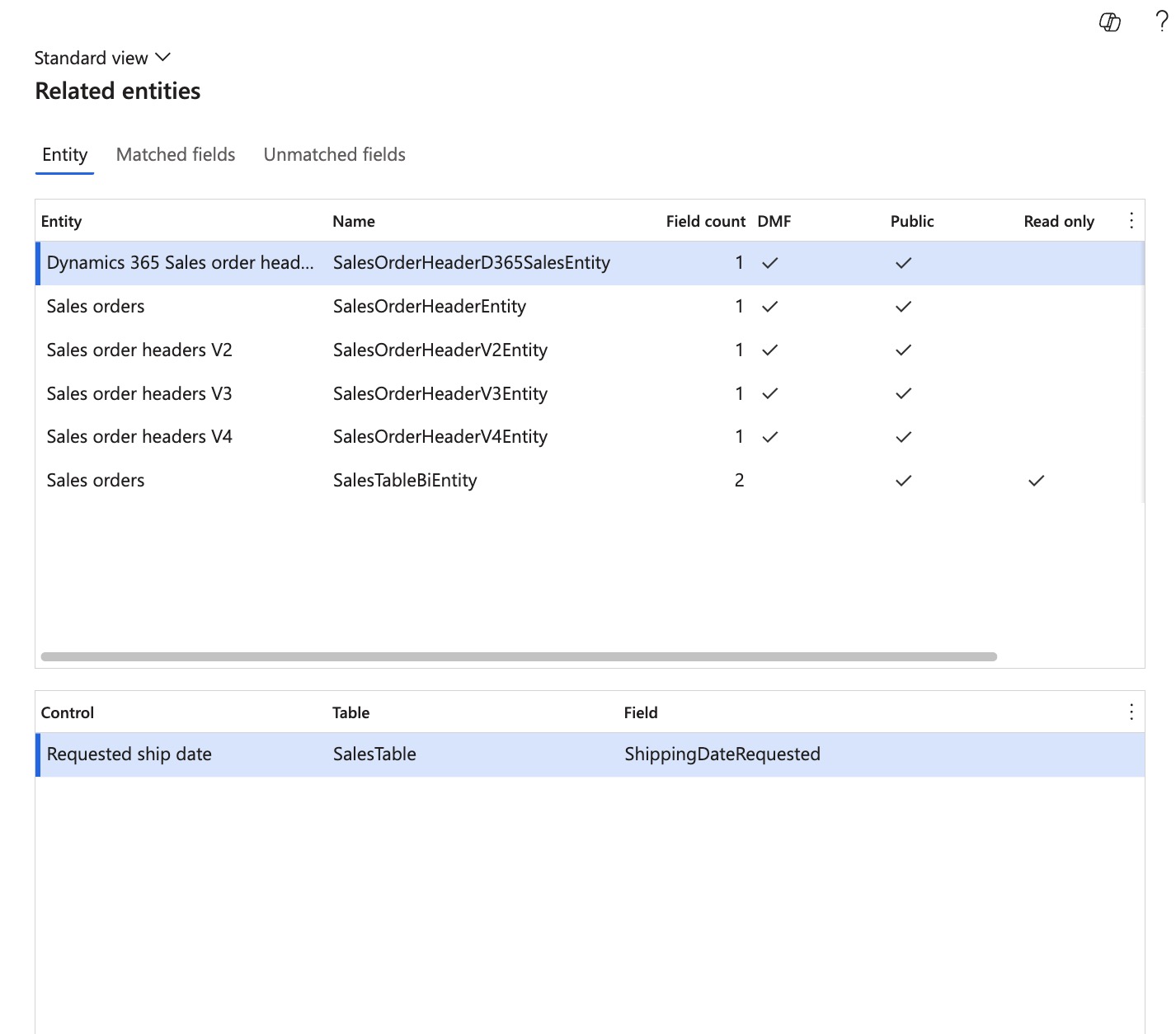
You can also use the Find entites for selected fields option to identify data entities that include the fields you selected. The system keeps the selected fields and the key fields for the related data entity, while removing any fields that were not selected. The results show all entities that contain the selected fields, along with information about which fields match or do not match the structure of the current data entity. To use the option, under the Outbridge section, select Find entites for selected fields.
Step 3: Viewing DMF projects
To view all existing DMF projects in Outbridge, expand Workspaces, and then select Data management.
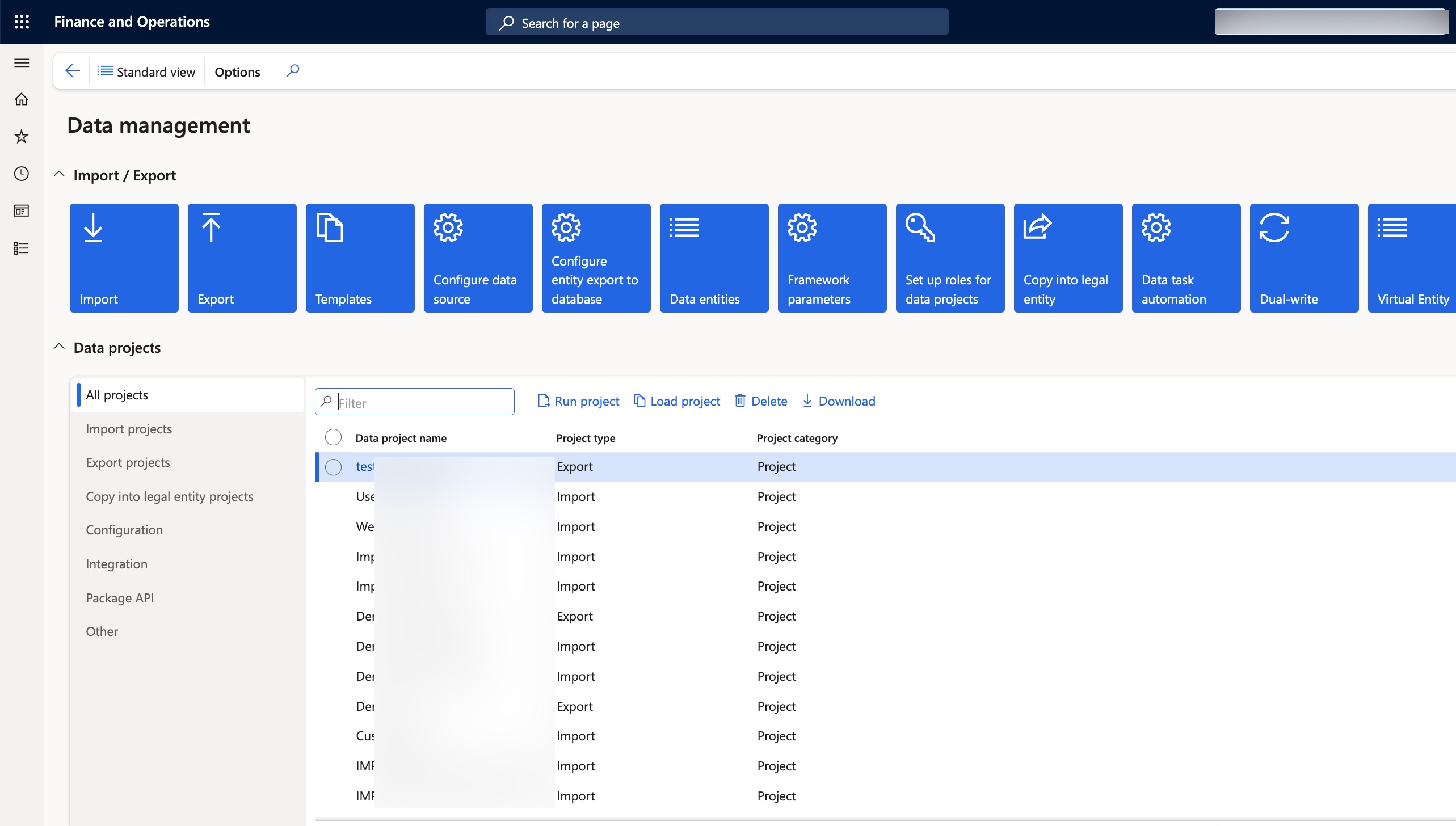
To view all the mapped fields for the project’s data entities:
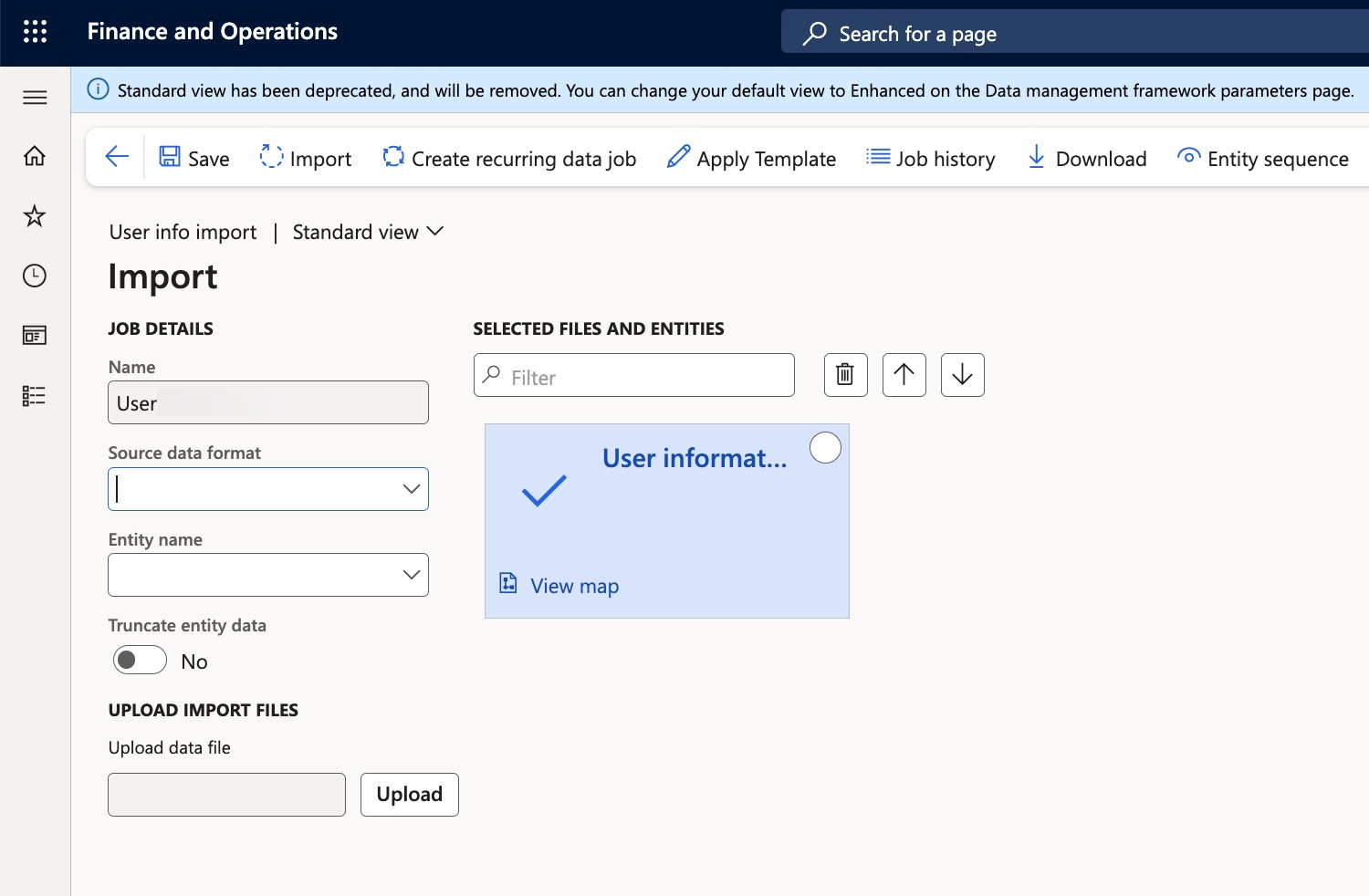
- Select your project and then select View map.
- In the displayed mapping tree, ensure that the source fields match the fields shown on the stage.