Configure an FTP storage connection
Configuring FTP data storage involves a series of steps to ensure a secure and reliable connection between your F&O and the remote FTP server. During configuration, you'll need to provide specific connection details, such as the server address, port number, authentication credentials, and the target directory path. Follow the instructions below for the configuration process.
To configure an FTP storage connection:
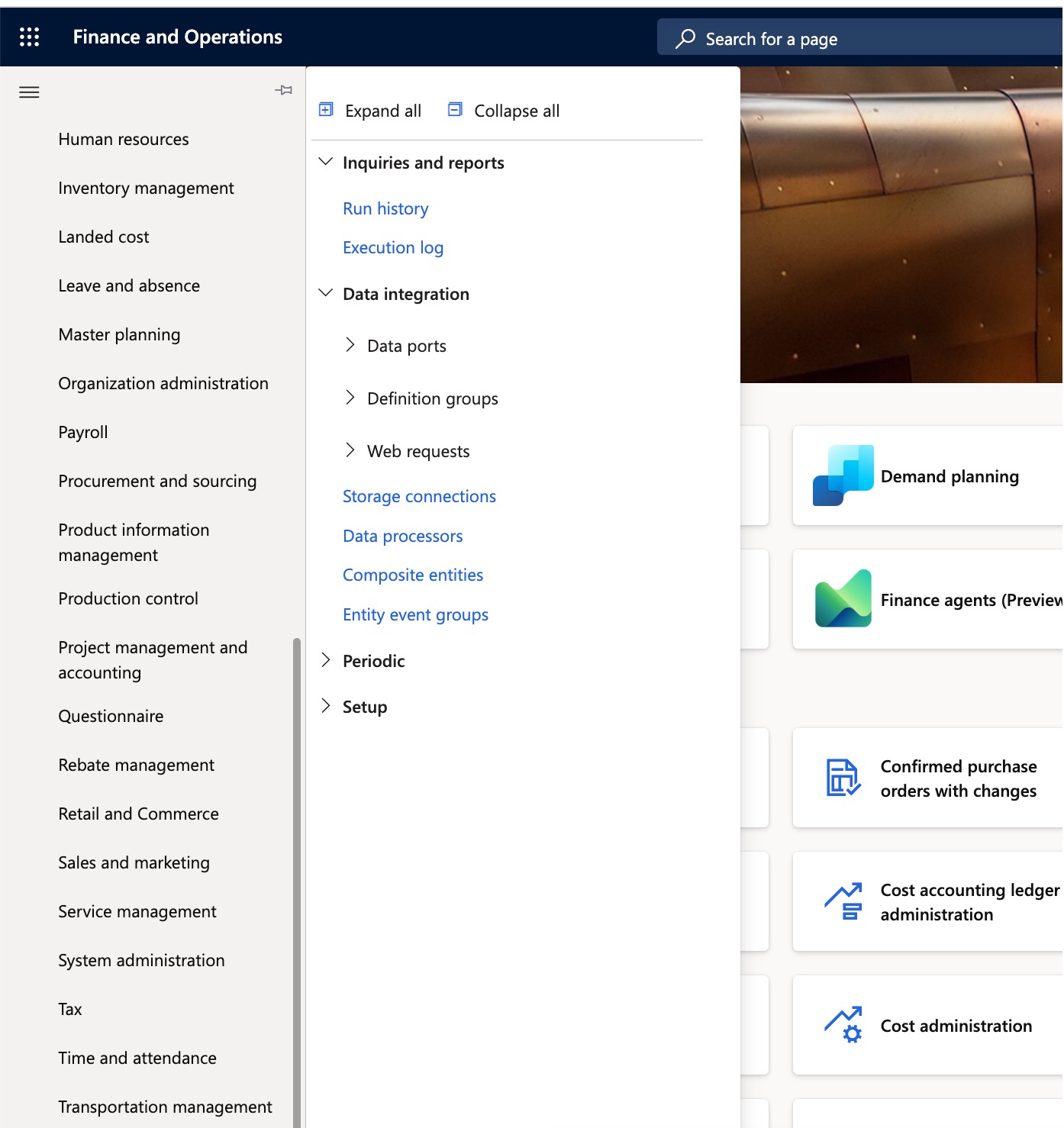
- In the Finance and Operations, expand the Modules and select Outbridge.
- From the displayed menu, select Data integration, and then select Storage connections.
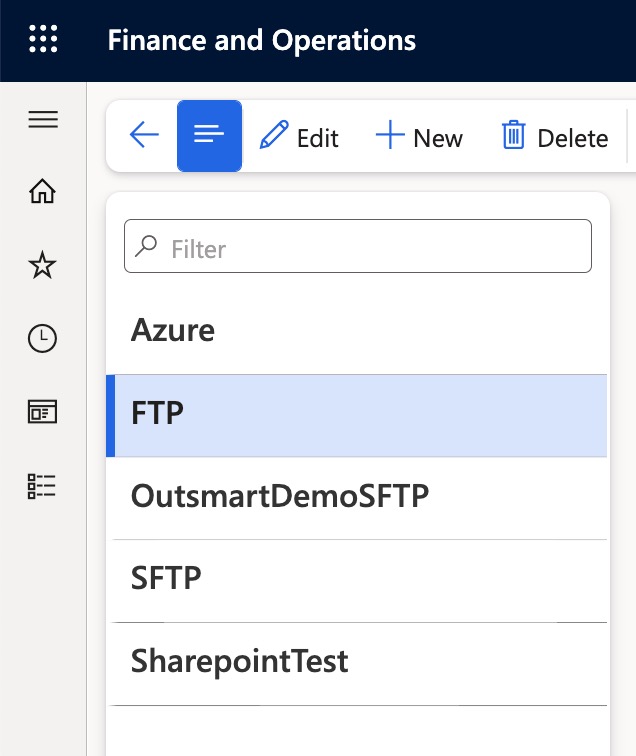
- Select New from the toolset panel at the top of the page.
- On the displayed page, select the FTP type from the list of available data storage.
- In the displayed window, specify the following details:
- Storage ID—a name or identification number of a new data storage.
- Storage type—select File.
- Description— a summary or details for a new data storage.
- File storage type—an FTP data storage for file processing
- Address—the hostname or IP address of the FTP server to connect to a new storage connection.
- Port—the network port used for the FTP connection.
- Encryption—the type of encryption for a secure connection.
- None—a plain FTP.
- Explicit TLS—TLS begins after the connection is established.
- Implicit TLS—TLS begins from the initiated start.
- Server default—the default settings to initialize a connection.
- User name—a name or ID of a user to authenticate with the FTP server.
- Password—a password associated with the username for authentication.
- Mode—a used transfer mode.
- Active—the server connects back to the client.
- Passive—the client initiates all connections (recommended option).
- Server default—the default settings to initialize a connection.
- Protocols—supported file transfer protocols.
- TLS—a Transport Layer Security encryption protocol that ensures secure data transmission over networks.
- SSL 2.0 / SSL 3.0—Secure Sockets Layer encryption protocols used to secure data transmissions.
- Default—an encryption protocol used by default when connecting to the server automatically.
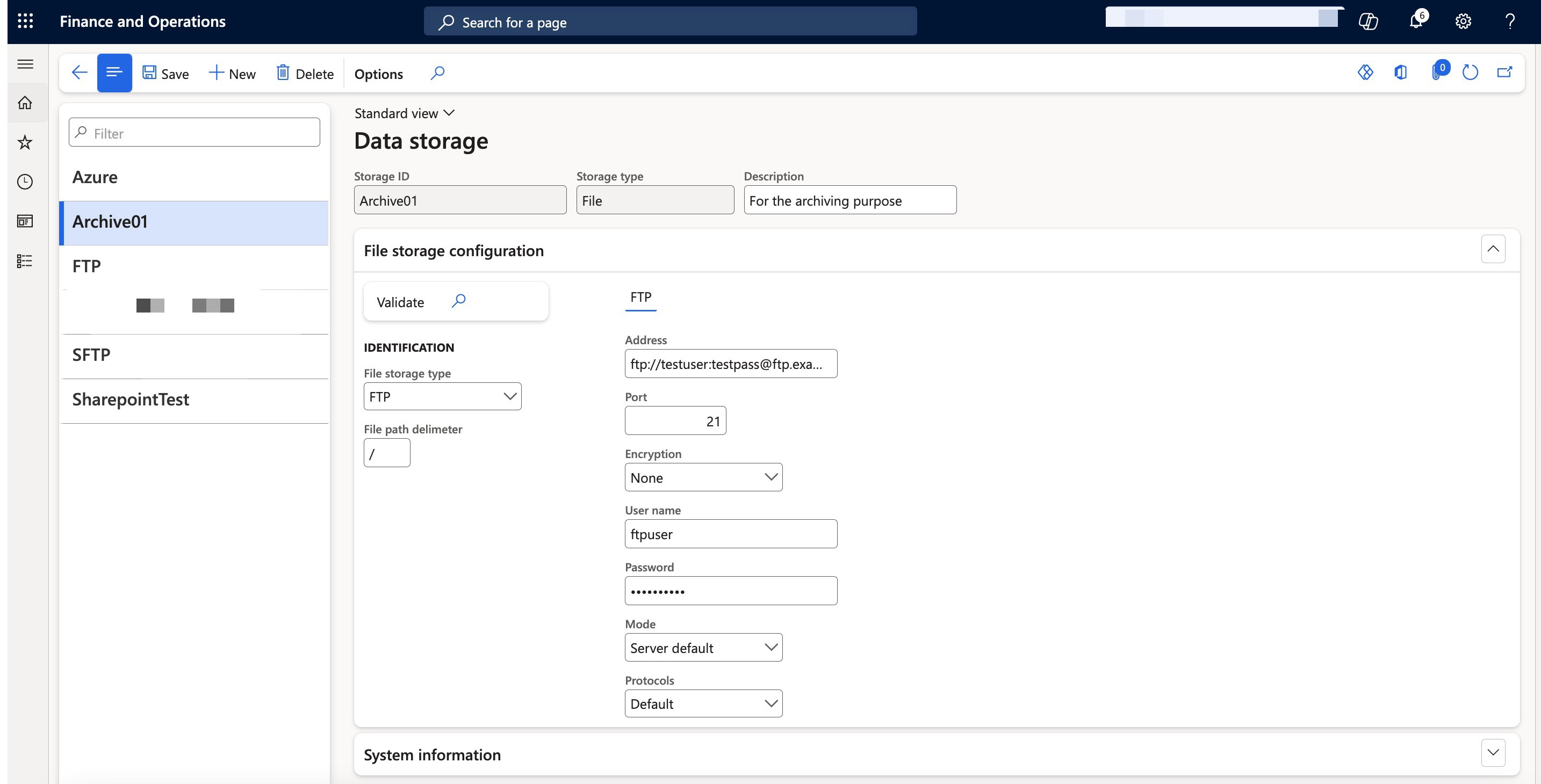
- Select Test connection to check whether the specified details for a new storage connection are acceptable. If all the details are correct, you will see a notification about successful validation.
- Select Save to complete the configuration of your new storage connection.