Configure an Azure storage connection
Configuring an Azure storage connection involves a set of steps to connect your data storage with Microsoft Azure's cloud storage services. As part of the configuration process, you'll need to provide details such as Azure account credentials and account key, container name, and optional path settings.
Prerequisites #
Ensure you have all required accounts and utilities in place before starting the configuration.
- A valid account with admin permissions on the Azure portal.
To configure an Azure storage connection:
- In the Finance and Operations, expand the Modules and select Outbridge.
- From the displayed menu, select Data integration > Storage connections.
- Select New from the toolset panel at the top of the page.
- On the displayed page, select the Azure type from the list of available storage connections.
- In the displayed window, specify the following details:
- Storage ID—a name or identification number of a new storage connection.
- Storage type—select File.
- Description— a summary or details for a new storage connection.
- File storage type—a type of data storage for processing files. Here, select Azure.
- Account name—the name of your Azure account.
- Account key—a secure access key associated with your Azure storage account that grants permission to access and manage the storage resources.
- Container name—the specific container within your Azure storage account that stores and retrieves your data.
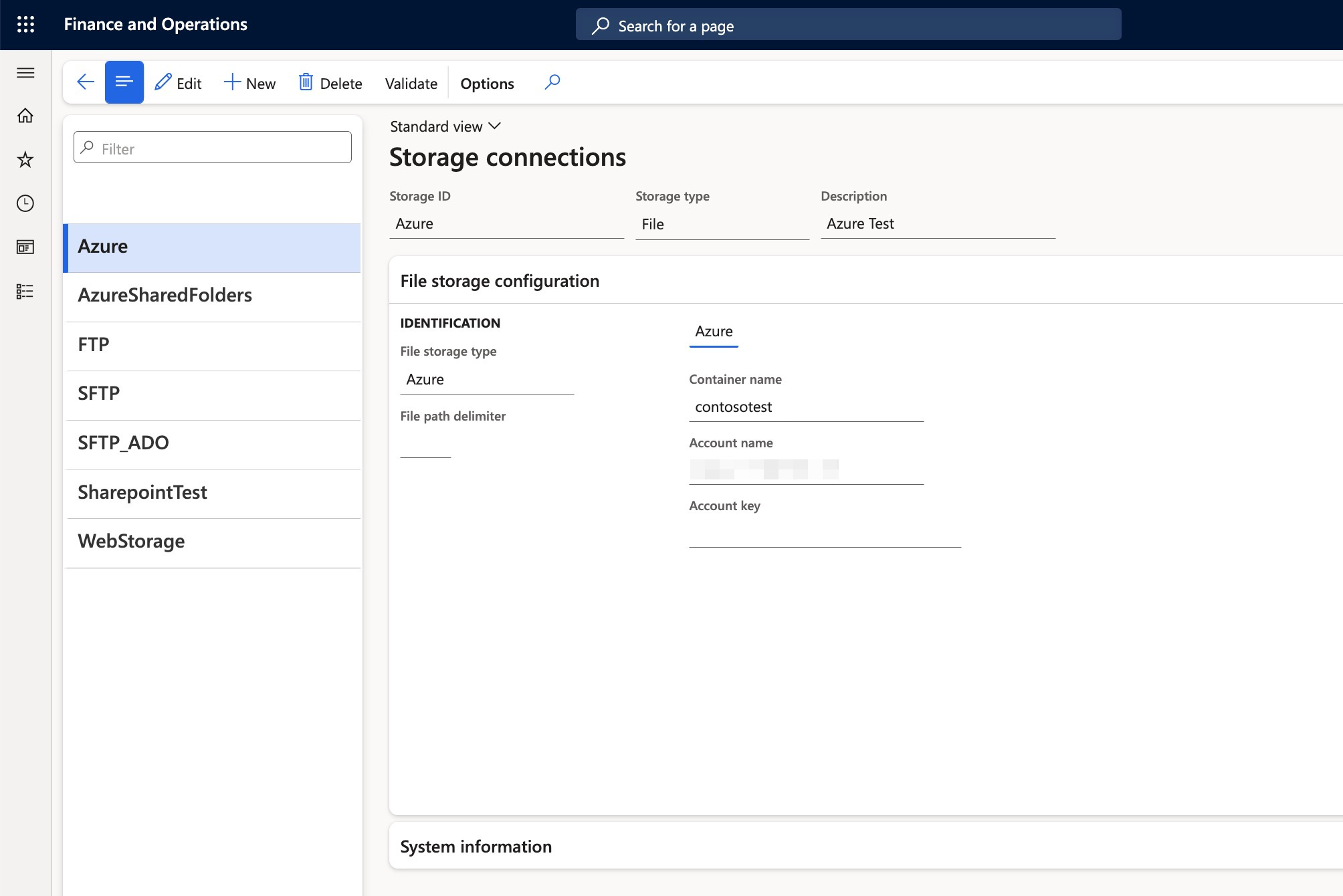
- Select Test connection to check whether the specified details for a new storage connection are acceptable. If all the details are correct, you will see a notification about successful validation.
- Select Save to complete the configuration of your new storage connection.